Get started
Add Chatslane to your app
Create your app in the dashboard and let your coding agent build the chat screen in a few minutes.
How it works
Chatslane has no SDK to install. You get a setup prompt with your App ID. Paste it into a coding agent (Claude Code, Cursor, Codex…) inside your app's project, and it builds a native chat screen in your own code that talks to Chatslane.
Works with Swift / SwiftUI, Kotlin / Jetpack Compose, React Native, Expo and Flutter.
Add your app
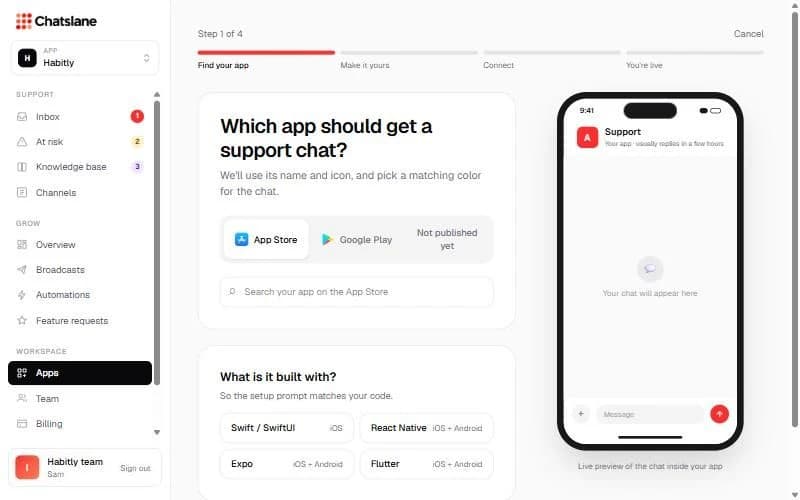
- 1Go to Apps and click "+ Add app".
- 2Find your app on the "App Store" or "Google Play" tab, or pick "Not published yet" and type its name.
- 3Under "What is it built with?" pick your framework. For cross-platform apps, tick "It's also on Android" if it is. Click "Continue →".
- 4Set the "Chat title", "Greeting" and "Color" (the first color comes from your app icon), then click "Looks good →".
Connect it
- 1Click "Copy setup prompt".
- 2Paste it into your coding agent in your app's project and let it build the chat.
- 3Run your app and open the chat. The dashboard shows "{app} is connected" as soon as the first message arrives.
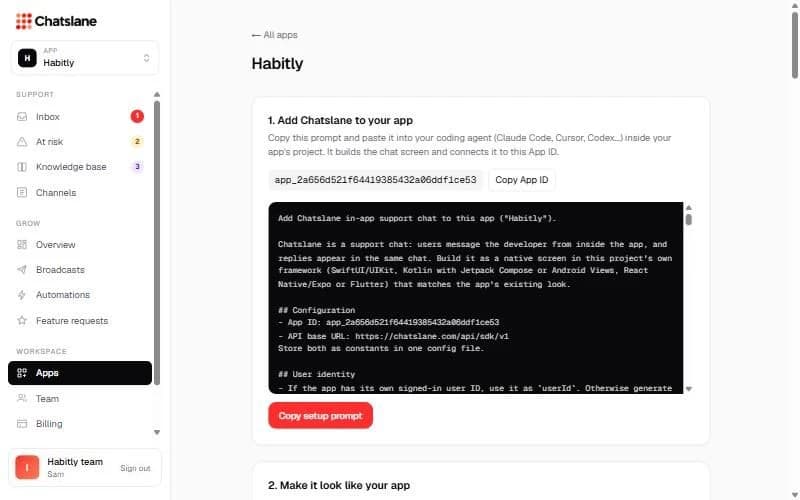
Tip: You can always find the prompt again under Apps → your app → "1. Add Chatslane to your app". The App ID is public, so the prompt contains no secrets.
Before you start
You need an active subscription to add an app. Without one, the wizard shows "Subscribe first, then come back to add your app."
Stuck? Email us at info@chatslane.com.